How to review a title search package with AI
An AI-assisted way to draft your review workpapers from a package you have already searched and pulled. It produces drafts you verify against the instruments. It is not an abstract, an examination, or a title opinion.
An AI-assisted way to draft your review workpapers from a package you have already searched and pulled. It produces drafts you verify against the instruments. It is not an abstract, an examination, or a title opinion.
A title search runs through skilled hands. The searcher works the indexes and pulls the record, the examiner reads what was pulled and decides what it means, and the underwriter decides what is insurable. Searching and examining both take judgment, and an omission can begin in either one. This guide covers a narrow slice of the examiner's half: using AI to draft your review workpapers from a package that has already been searched and pulled. It does not search the record, examine title, or give an opinion. It reads the documents you give it and lays them out for you to check.
The boundary, before anything else
Read this before you upload a single file. The AI only sees what is in the package you hand it. It cannot search the grantor and grantee indexes, the tract, the judgment or tax rolls, or any other index. It cannot find an instrument that was never pulled. The index is a finding aid, not the record, and this tool sits a step further removed than that: it works only from the instruments already in hand.
So this procedure assumes the search is already done and documented. That means an independent grantor/grantee, tract, judgment, tax, and any other applicable index search, with every index hit run down to the recorded instrument. It assumes you have already fixed the jurisdiction, the estate, the parcel, the search period or a root of title acceptable for this jurisdiction and this assignment, and the effective date, meaning the date and time through which you searched, along with any index periods that were unavailable. If any of that is not done, stop. The tool cannot do it, and a clean-looking table sitting on top of an incomplete search is worse than no table.
What a record search cannot tell you
Even a complete search, drafted perfectly, is silent on everything off the record. It cannot show parties in possession, unrecorded interests or leases, survey and boundary conditions, encroachments, inchoate mechanic's liens, a signer's capacity, forgery, or any fact that never reached the record. Those need other evidence or underwriting treatment. Nothing below changes that.
The tool, and three words it uses
The tool I use is docAnalyzer, for two reasons that matter on a title file. It links each answer back to the document and page it came from, which is what lets you verify an entry against the instrument. And it reads a whole package of scanned recordings at once. Another tool that does both would serve as well.
Three of its terms run through the steps below, and each is a named feature you click, not a figure of speech. A document is one file you have uploaded; all of them live under Documents in the sidebar. A label is a tag you create on the Labels page and pin onto a group of documents so you can work with them as a set. A Focus chat is a chat scoped to a chosen set of sources, so it reads only what you point it at and nothing else. That set can be a single document, several, or a whole label; in this guide it is the one label you make for the file.
Optional: capture your search as you go (Chrome)
This step is optional and Chrome-only, and it does not move the boundary: docAnalyzer does not run the search, it only saves the pages you open. If your recorder, court, and tax records are online, you can capture them straight into the order's label with the docAnalyzer Chrome extension instead of downloading and re-uploading each file by hand.
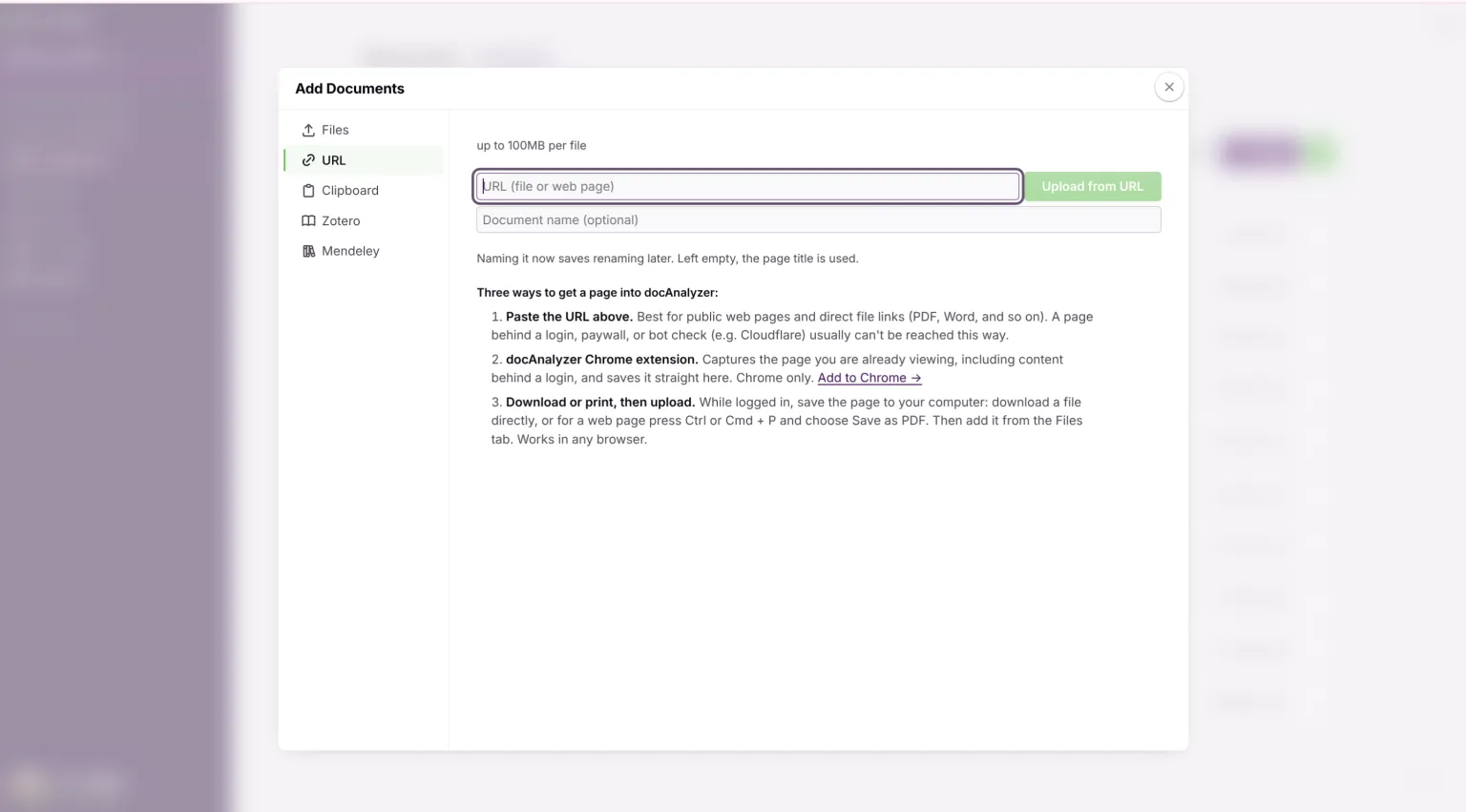
Working in the official system, run your searches as usual. With the extension, save the full page of what documents the search: your material search criteria, every results page (not only the ones with hits), your zero-result searches, and each recorded instrument you pull. A search that returned nothing still matters: it records that you looked there and found nothing. The extension captures what you are actually viewing, including pages behind a login that a pasted URL cannot reach. For a public page or a direct file link, the URL tab in Add Documents does the same thing from a pasted address.
As you save, classify what each page is by adding a second label: SEARCH EVIDENCE for the index and results pages, RECORDED INSTRUMENT for the instruments themselves. A document can carry more than one label, so it sits under both the order and its type. Where the system shows it, note the source URL, the capture time, the search terms, the date range, and the jurisdiction, so the saved page documents what was searched and when.
Everything after this point treats the RECORDED INSTRUMENT items as the package. The SEARCH EVIDENCE items are what you reconcile the package against later, and they document that the search was actually run.
If you already use docAnalyzer
A map for a reader who knows what a label and a Focus chat are. It points at the steps rather than replacing them, and what it marks in bold is what decides the result.
| You, before anything is uploaded | Step 1. Inventory the package and quality-check it. The review is only as good as what goes in, and a page nobody can read is a gap you will not see. |
| You | Step 2. Settle the client-data question, then upload, one instrument to a file. |
| You | Step 3. Open the Focus chat on the label and check what it is scoped to. |
| You, in the chat | Step 4. Draft the workpaper tables separately: ownership conveyances, security instruments, releases, other encumbrances, money liens. One animal per table. |
| You, and this is the work | Step 5. Export the drafts and verify every row against the recorded image, outside the chat. They are drafts until you have. |
| You | Step 6. Carry anything you could not resolve from the record as an open exception until it is cleared. |
| You | Steps 7–8. The corrected workpaper is the operative one. Record the search-through date, the indexes searched, and who owns the call. |
Step 1. Inventory and quality-check the package
Before the tool sees anything, get the package clean and accounted for. This is file discipline, not examination, but the review is only as good as what goes in.
Keep each instrument whole and separate. One recorded instrument is one file, with all of its pages together: the recorder's cover sheet, every page of the body, exhibits, the acknowledgment, attachments, and any marginal notation. Do not merge separate instruments into one PDF, and do not let one instrument end up split across two files. Keeping them separate is also what lets the tool cite an answer to a specific recording rather than to "page 47 of one big file."
Then quality-check. Inventory the page count of each instrument against what you expected from the record. Resolve duplicates, truncated files, rotated or upside-down scans, and anything unreadable before you upload, not after. A page the tool cannot read is a hole in the review whether or not anyone notices it.
Build a manifest and reconcile it. For each instrument the search called for, list the instrument number, the expected page count, the uploaded filename, and a verification status. Reconcile that manifest against your search notes, your index results, the prior-instrument references inside the documents, and your recorder retrieval log. The upload list by itself only tells you what you uploaded, never what the search required.
Step 2. Upload it securely
First, the data question, because these are client records. Before anything leaves your desk, confirm that your client's policy, your engagement terms, your retention rules, and the tool's own data-processing terms all permit putting these documents into it. Know how access is controlled, how you delete, whether uploads can be used to train a model, and how to keep this client's workspace separate from other work.
Redaction needs care. If your rules require it, redact only what the review does not need, and never a field the analysis depends on: a party name, a signing capacity, an acknowledgment, a recording stamp, a legal description. Keep the complete recorded image as your verification source. If policy forces you to strip information the review actually needs from an instrument, do not run that instrument through the tool at all. And for anything that will leave the file, a demo, a screenshot, a training deck, use a synthetic or fully redacted package, never a real client's record.
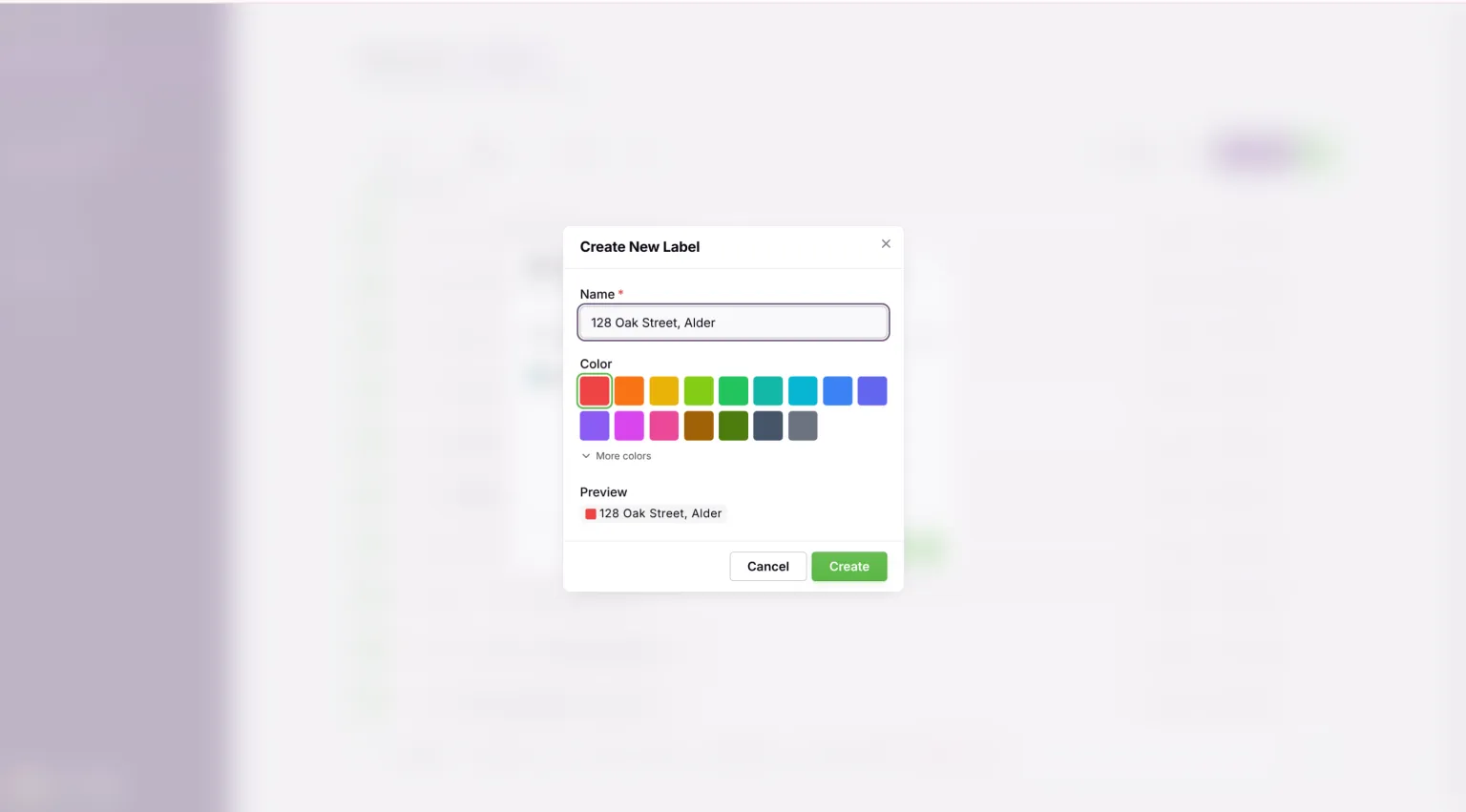
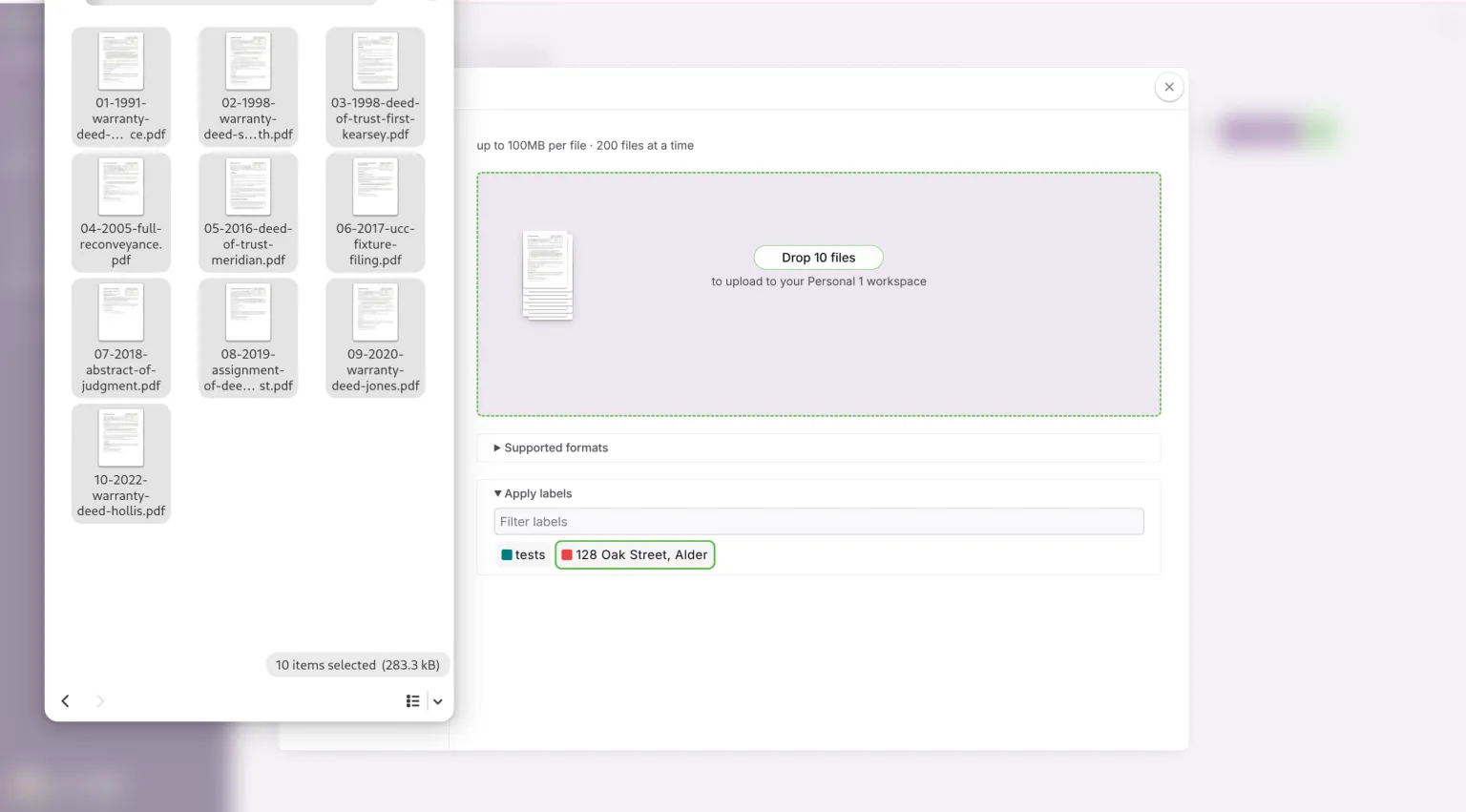
Then load it. Make the label first so the package lands grouped. Open Labels in the sidebar, click Create New Label, and name it for the file. Open Documents, click Add, and on the Files tab open Apply labels and select that label before you drop the instruments in. Add them as separate files.
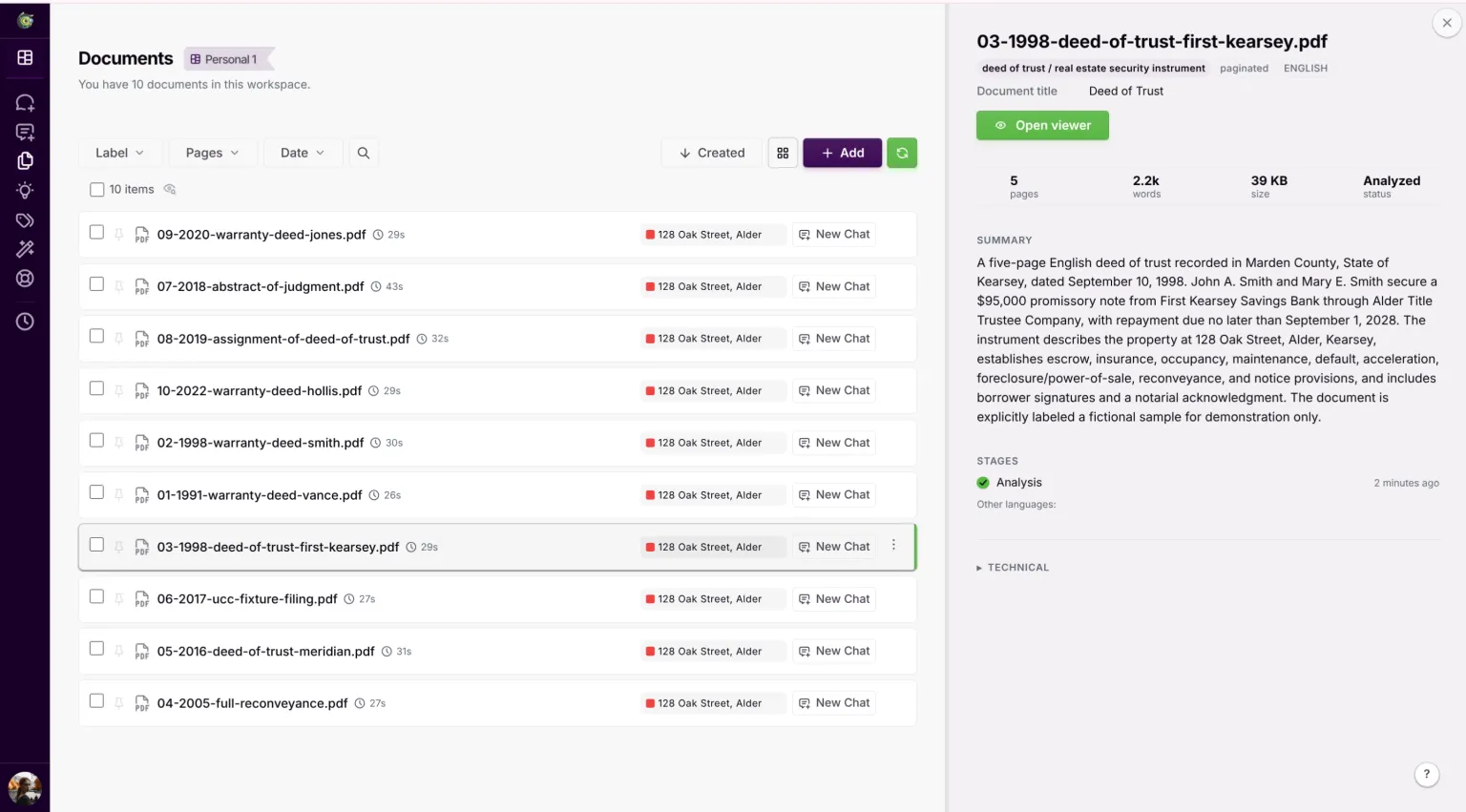
Scanned recordings are read automatically. docAnalyzer runs OCR on scanned and image pages during upload, and answers still point back to the scanned page. Automatic OCR is weak on handwriting, faint stamps, dense marginal notes, and poor scans, so for a rough instrument run Enhanced OCR from that document's menu, a higher-accuracy pass that shows its cost before it runs. A page that OCR'd badly produces a bad table row, so treat OCR quality as part of the quality check, not an afterthought.
Step 3. Open the scoped chat, and understand what it is
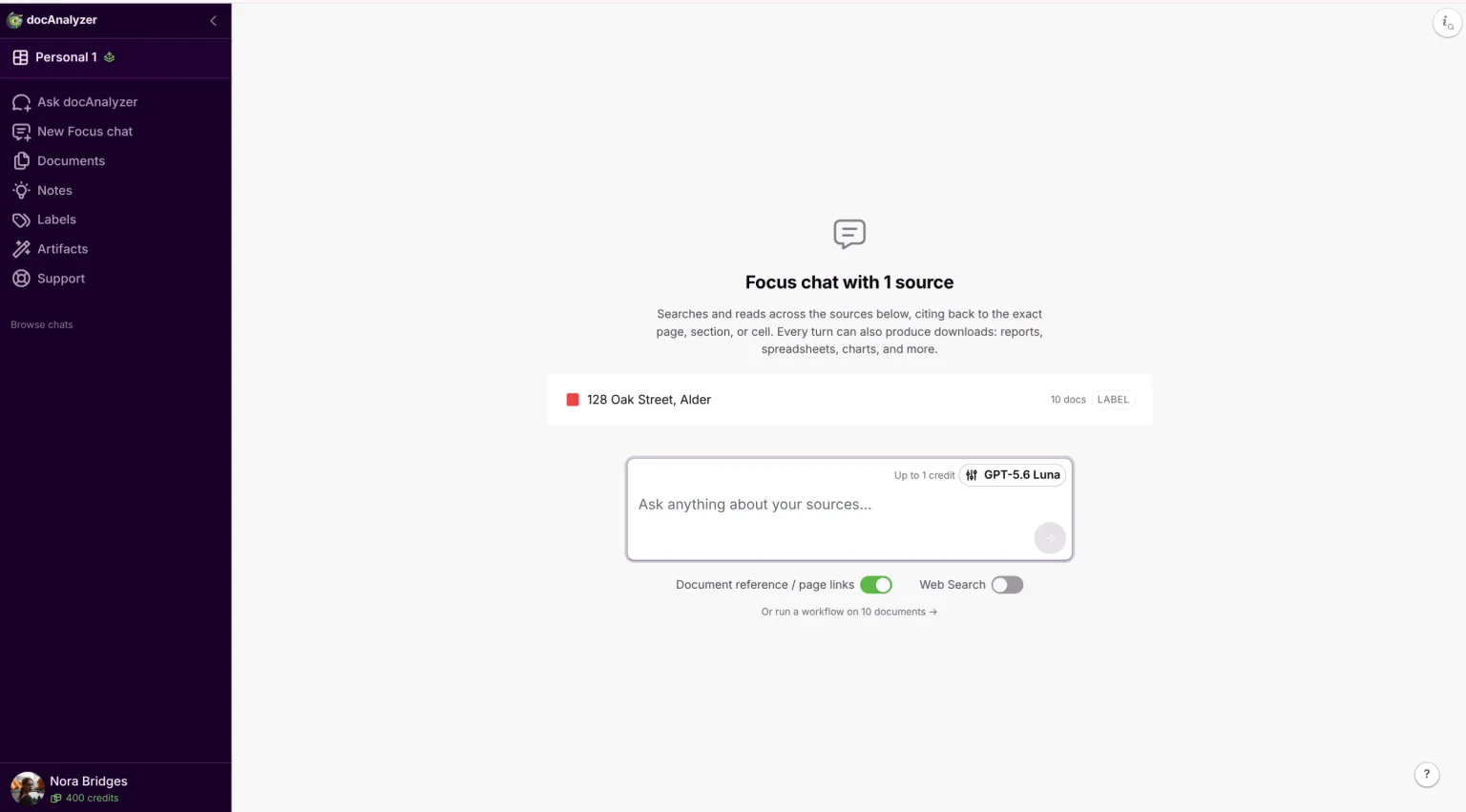
Back on the Labels page, click New Chat on your file's row. You land on a screen headed Focus chat with 1 source. That one source is the label; its row shows the label, a LABEL tag, and the count of documents inside it, so a package of thirty instruments reads as one source holding thirty documents. The chat still reads and cites each instrument individually.
Understand what this screen is, because the whole review happens here. The box at the bottom reads Ask anything about your sources, and everything you type into it is answered only from the documents under this label: this file, and nothing from any other search. You are not asking a general assistant, you are putting questions to your own package. You scoped this Focus chat to a single label on purpose, and that boundary is the difference between an answer you can use and one you cannot. Keep it that way, and do all of Step 4 in this one chat.
Before you ask anything, set the chat to stay on the documents. From the sliders button by the box, open the chat settings and set Context Adherence Level to High, which keeps answers on the instruments and lets the model reach for general knowledge only when it must. Leave Document reference / page links on, since the citations are the point, and turn Web Search off, because this review has to hold against the chain, not the internet. One honest limit: adherence is a bias, not a lock. It pushes the model toward the record and toward admitting what it could not find, but it does not replace any of the verification in Step 5. To set it once for every matter instead of per chat, use the same option under Account settings.
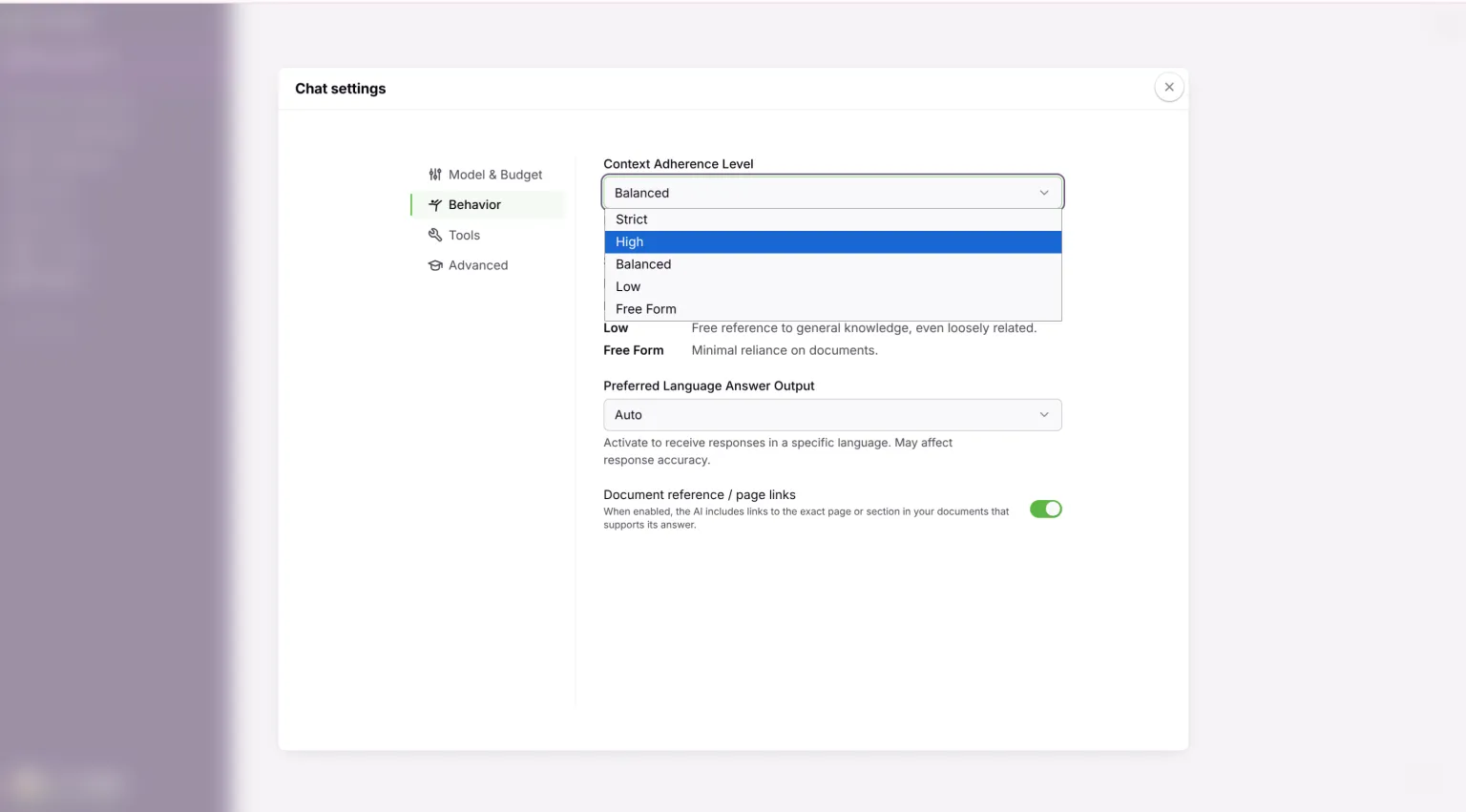
One optional companion, on a paid plan: in the same settings, under Model & Budget, raise Thinking Effort to Medium, or High for the reasoning-heavy passes like the chain linkage and the legal-description reconciliation. It gives the model more room to work across the instruments and makes for a cleaner first draft. On a reasoning model that adds up to about a fifth to the per-turn credit cap, which you only pay into as the model uses it; on the lighter default model it is negligible. It is off on the free plan, and unlike adherence it is set per chat and resets if you switch models.
Step 4. Draft the workpaper tables
A title package is not one chain, so do not ask for one table. Ownership conveyances, security instruments, releases, other encumbrances, and money liens are different animals, and mixing them hides problems. Draft each as its own workpaper by pasting the prompts below into the Focus chat, one at a time, letting each table come back before the next.
Two habits keep the drafts honest. Each prompt tells the tool to read the instruments fresh rather than to trust an earlier table, because an omission in an early table would otherwise ride through every later one; where a prompt reconciles against a prior table, that is a cross-check, not the source. And where a prompt has [brackets], fill them with the actual instruments you fixed during the search before you send, for example "the warranty deed recorded February 28, 2022 from Miller to Hollis." For a large package, run the clause-by-clause checks, 4.7 and 4.8, in batches of a few instruments and keep a coverage ledger, because one long answer can miss material even when every document appears once.
Everything that comes back is a draft. You export and verify it in Step 5, and the tool flags and surfaces; it does not decide or clear.
One rule holds across every prompt. If a field is not there, do not supply it: do not fill a missing value from another instrument, an index entry, or ordinary practice, and do not guess one. Write NOT STATED when the instrument itself does not give the field, and UNREADABLE when the image cannot be read. Reading a field in the context of its own instrument is normal and fine; inventing a value the instrument does not contain is not.
4.1 Ownership conveyances.
Reading the deeds and other ownership conveyances only, not mortgages, liens, or releases, build a table with columns: instrument type, execution date, acknowledgment date, recording date and time, instrument number or book and page, grantor, grantee, estate or interest conveyed, and legal description exactly as recorded. Do not order by recording date alone. Where execution, acknowledgment, and recording order disagree, or where a corrective, simultaneous, or out-of-sequence instrument appears, note it in a "date conflict" column. Cite each row to its source document and page.
4.2 Chain linkage table.
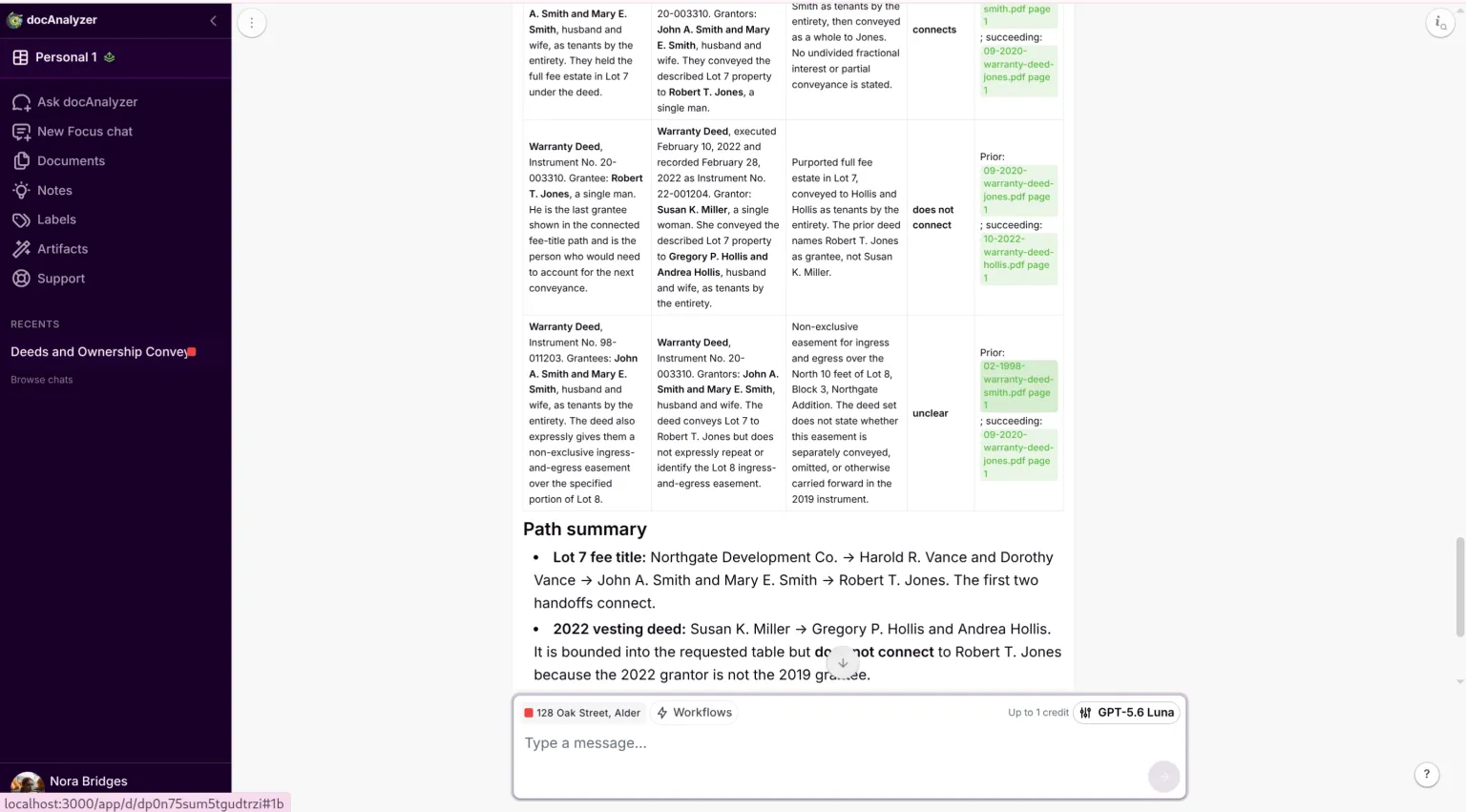
Reading the ownership conveyances directly, build a complete linkage table with one row for every handoff in the chain, not only the gaps. Columns: prior instrument with its grantee and the interest held, succeeding instrument with its grantor and the interest conveyed, the estate or fractional interest involved, a connection status of "connects," "does not connect," or "unclear," and a citation to each of the two instruments. Track each parcel, estate, and fractional interest on its own path: where title splits into undivided interests, a cotenancy, a life estate and remainder, or a partial or split conveyance, follow each interest separately until it merges again or reaches current vesting. Bound the table by the root [name it] and the vesting deed [name it]. Do not resolve a break; mark it "does not connect" and leave it for me.
4.3 Security instruments and assignments.
Reading the mortgages and deeds of trust and their assignments directly, build a table with columns: instrument type, recording date and time, instrument number, borrower or grantor, lender or beneficiary, trustee if any, amount if stated, and legal description as recorded. List every assignment on its own row with its date, its parties, and its recording. Cite each row.
4.4 Candidate releases for the security instruments.
Reading the package directly, build your own inventory of every release, satisfaction, and reconveyance in it, then reconcile that inventory against the security-instrument table above and flag anything that appears in one and not the other. For each mortgage or deed of trust, give a status of exactly "candidate release located," with the releasing instrument and citation, or "none found in package." Do not use cleared, released, or satisfied as a conclusion. For each candidate, state facts only: whether the party executing the release matches the original lender, the named beneficiary, the trustee, or the last assignee shown in the package, and whether the recording data, the referenced obligation, and the described land match. Leave the legal effect to me.
4.5 Liens, judgments, lis pendens, and fixture filings.
Reading the package directly, build a separate table of every lien, judgment, lis pendens, and UCC fixture filing, with columns: type, recording date and time, instrument number, party claiming, party against, amount if stated, and the legal description or property reference. Do not state whether any of these is expired, satisfied, renewed, or no longer attached. Attachment, duration, renewal, priority, and relation-back are state-specific, so flag each as "requires jurisdiction-specific examination, and underwriting review where title insurance is involved, before it is treated as cleared" and cite it.
4.6 Candidate satisfactions for those liens and judgments.
Search the package for any satisfaction, release, cancellation, withdrawal, renewal, or amendment that references a judgment, lien, lis pendens, or fixture filing from the previous table. Pair each factually with the item it references: the instrument, the underlying item, the recording data, and a citation. Do not state whether the underlying item is discharged, expired, or still attached; that is for me, counsel, or the underwriter.
4.7 Exceptions and appurtenances.
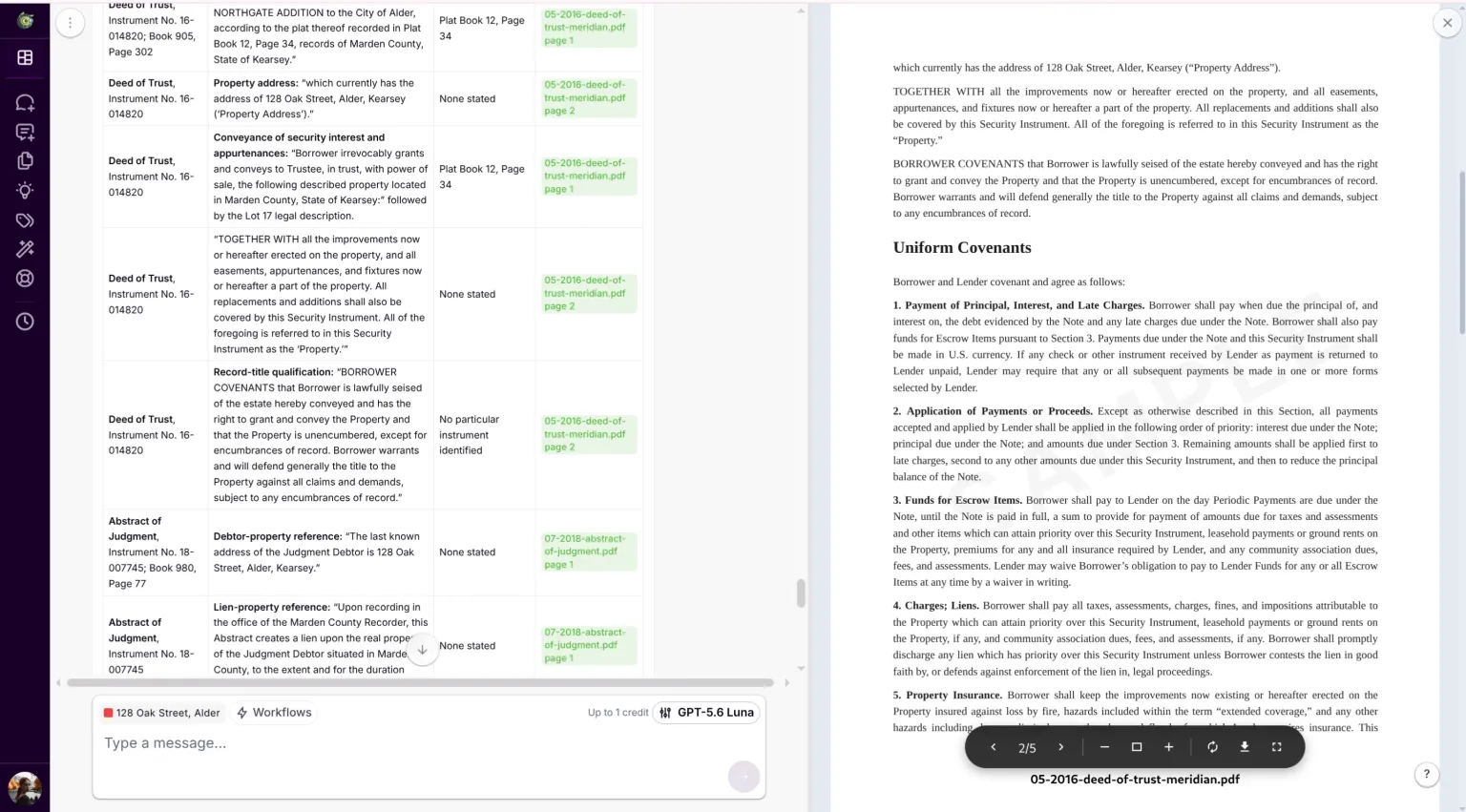
Reading every instrument in the package, extract into a table every clause that may burden, benefit, reserve an interest in, or refer to the land: each "subject to" and "together with," and every reservation, exception, easement, restriction, mineral interest, lease, option, right of first refusal, plat reference, subordination, modification, and partial release. For each, give the instrument, the exact language, any prior instrument it references by book and page or instrument number, and a citation. List every prior-instrument reference even when that instrument is not in the package. Do not list a security instrument's own internal loan covenants, such as payment, escrow, insurance, maintenance, occupancy, acceleration, reconveyance on payoff, or substitution of trustee; those are terms of the loan, not separate recorded interests in the land. Do still capture a security instrument's property description, its "together with" appurtenances, and any reference it makes to another recorded instrument. Surface the language; do not decide its legal effect.
4.8 Legal description reconciliation.
The instrument that vests the estate searched is [name it]. Compare its legal description, word for word, against the root, against every intervening conveyance, and against the legal description in every other instrument in the package that describes the land, including the deeds of trust, mortgages, liens, and fixture filings. Preserve exact wording in a table and flag: omitted or added calls, changed bearings or distances, acreage differences, "less and except" clauses, plat or lot-and-block references, parcel splits, any instrument that names a different lot, block, or parcel than the vesting deed, plus anything that looks like a scrivener's error carried forward. Do not decide whether two metes-and-bounds descriptions cover the same ground, and do not treat a parcel or tax number as the legal description. Cite each row.
4.9 Execution facts.
For each instrument, build an execution table with columns: instrument, the vesting or granting language as written (for example "as tenants by the entirety," "a single man"), the capacity in which each party signs (individually, as trustee, as officer, as attorney-in-fact), the signatures shown, the acknowledgment or notary block with notary name, date, and commission, any marital joinder, and anything on the face that looks irregular, such as a missing signature or acknowledgment, a date that does not match, or an altered figure. Transcribe and flag only. Do not decide whether any instrument is valid; capacity, forgery, and validity are not determinable from the record.
4.10 Name run sheet.
Build a name run sheet as a table covering every party across the search period, not only the current owner: prior owners, spouses, fiduciaries, trustees, and entities. Do not include notaries, witnesses, or recording officials; they are not title parties and are not searched in the indexes. Columns: exact name as recorded, the instrument and the role (grantor, grantee, borrower, and so on), the date range it appears, and spelling or form variants worth searching (middle initial, suffix, alias, former name, entity change). Cite each. Treat any name affidavit already in the package as a possible curative item to verify, not a cure.
Step 5. Export the drafts, then verify and correct them outside the chat
The tables in the chat are drafts, and the chat has no idea which ones you will correct, so do not ask it to hand you a "verified" anything. Ask it only to lay the drafts out as a file you can work in.
Composing this file asks more of the model than drafting a single table did: it has to build eleven sheets with the right names, columns, and row counts, and append the blank verification columns, in one pass. If you are on a Pro plan, it is worth switching to a stronger model for this one step, for example OpenAI GPT Terra with Thinking set to High and token budget to maximum, before you send this prompt:
Compose all the tables from this chat into one spreadsheet I can download. Create exactly eleven sheets, in this order and with these names, and no others: ownership conveyances, chain linkage, security instruments, releases inventory, releases reconciliation, liens and judgments, satisfactions, exceptions, legal description, execution facts, names. Each sheet carries the corresponding table as drafted earlier in this chat: the same columns in the same order, and every row of it, with each value and each citation exactly as drafted. Do not merge, split, re-derive, shorten, or clean up any table, and do not drop rows. To each sheet's header row, append five columns after the drafted ones: source page, verified by, verification date, exception status, and disposition. I fill those by hand, so leave them empty: every data row must end with five empty cells and must contain exactly as many cells as that sheet's header row. Then, in your reply, list all eleven sheets and the number of data rows each one contains, so I can check the file against this chat.
Download it and mark it DRAFT, AI ASSISTED. From here you work in the file, not the chat.
From the same reply, also download the source list: the message menu offers Sources as CSV or text. The workbook cites each source by a number and page; the source list is the key that maps those numbers to the actual recordings. Retained together with the source list and the recorded instruments, the workbook stays traceable back to the record; verifying it is still the reading you do in Step 5.
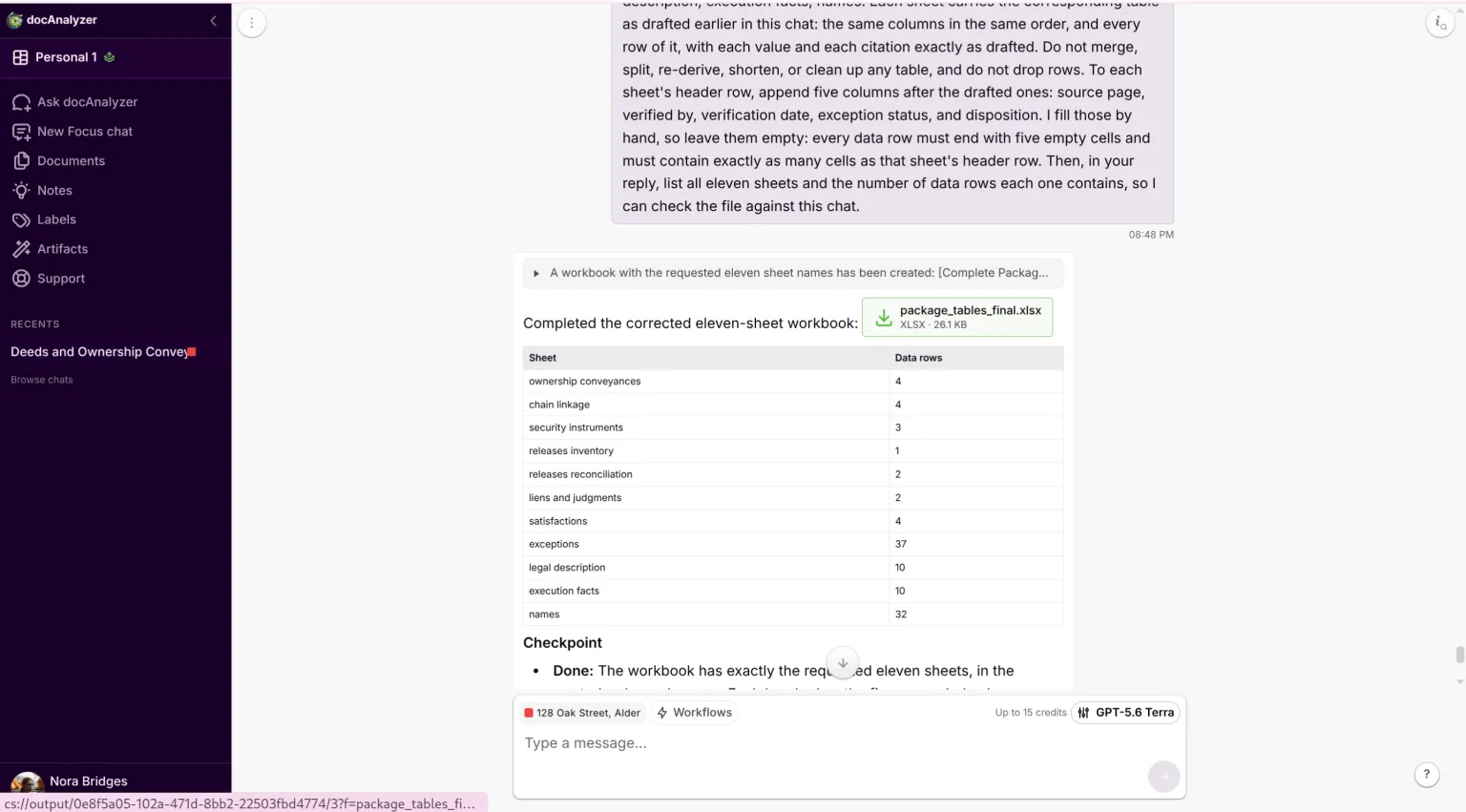
Now verify. For every material entry, open the recorded instrument itself, the image, and read it. A citation shows you where the tool looked, not that the entry is right. Correct the row where it is wrong, and fill in the columns the export left blank: source page, verified by, verification date, exception status, and disposition. Your initials and the date on each material row are what turn a draft line into a verified one.
Then reconcile coverage. Count the instruments the tool actually used against your manifest and chase any difference. For the clause-by-clause tables, the exceptions and the legal description, confirm every instrument was covered, not just present once, and note any page that was unreadable or never cited. A source that appears in the chat is not the same as a page that was read.
Step 6. Open exceptions
Treat every matter you could not resolve from the record as an open exception in the workpaper until it is cleared: a missing release, a break in the chain, a description that does not reconcile, a judgment or lien with no recorded satisfaction, an instrument with a facial irregularity. Note it and carry it. Whether any of these becomes an exception on the policy, and how it is worded, is the underwriter's decision, not the searcher's. Your job is to make sure nothing open is quietly dropped.
Step 7. The completed file, and what to keep
The operative workpaper is the one you corrected and verified by hand, with your initials on the material rows. That is what goes in the completed file. The raw chat output does not.
But do not simply discard the rest. Keep, according to your office's retention policy, the manifest, the exact prompts you ran, the source set you uploaded, the raw tool output, the model or workflow used, and the processing date. Mark them plainly as non-operative AI drafts. If anyone ever has to reconstruct what the tool was given and what it produced, that record is how, and the verified workpaper stays the one that controls.
Step 8. Effective date, continuation, and who owns the call
Record the jurisdiction, the search-through date and time, the indexes searched, and any periods that were unavailable. A package is a snapshot and cannot show what recorded after it was assembled, so a date-down or continuation through the required closing point is still needed.
And keep the roles straight. The examiner, or counsel, determines marketability within the governing law and the scope of the assignment. The underwriter determines insurability, policy exceptions, and coverage. Quiet title, the preparation of legal curative instruments, and any decision about the legal sufficiency of a cure belong to a lawyer. The curative legwork around them, requesting a release, obtaining probate records, collecting an affidavit, can be done under direction. Licensing, certification, bonding, and what counts as a permissible title opinion vary by state, so the authorized searcher or examiner remains responsible for the work product and confirms what they are allowed to sign before signing it. The tool drafts inside that structure. It replaces no part of it.
What it costs, and a note on product facts
docAnalyzer's Community plan is free to open and enough to try this on a small package. Uploading and automatic OCR do not spend credits. Running the checks in a Focus chat on the default model uses only a few credits, well within the free plan's monthly allowance for a small package. The steps that use more, the workflows, Enhanced OCR, and the Step 5 compose, show their estimate before they run; the compose is the biggest, more so on a stronger model. Per-file size, upload counts, and storage limits vary by plan, and a working file of scanned recordings will run into the free plan's limits, so real volume wants a paid tier.
Prices, plan limits, credit charges, available field types, processing behavior, and even button names change over time. This guide describes the product and pricing as of August 2026, and its screenshots use a synthetic sample package, not a real file. Check the current pricing and help pages before you rely on any specific number or step here.
Corrections
If something here is wrong, tell us. Screens change, prices change, and a step that was accurate in August may not be in March. Write to [email protected] with the guide name and what you found, and we will correct it and date the correction.
Product trouble is a different queue: [email protected].
Last updated 25 August 2026.
Copyright and licence
© 2026 AI For Verticals, Inc. docAnalyzer® is a trademark of AI For Verticals, Inc.
This guide, its text and its figures, is published under the Creative Commons Attribution-NoDerivatives 4.0 International licence. Copy it, print it, circulate it in your office, put it in a training pack, hand it to a client, host it yourself, commercially or not. Two conditions: credit AI For Verticals and link to the licence, and pass it on whole rather than as an edited version. Quoting it and citing it in your own work are neither of those things and need no permission beyond ordinary attribution. The licence covers the guide. It grants no rights in the docAnalyzer name or marks.